What is Photo to Animal?
Use a photograph as the starting point for an animal-inspired portrait. Try it for a studio portrait series, with your own setting and a clear visual intention.

a practical portrait or design study
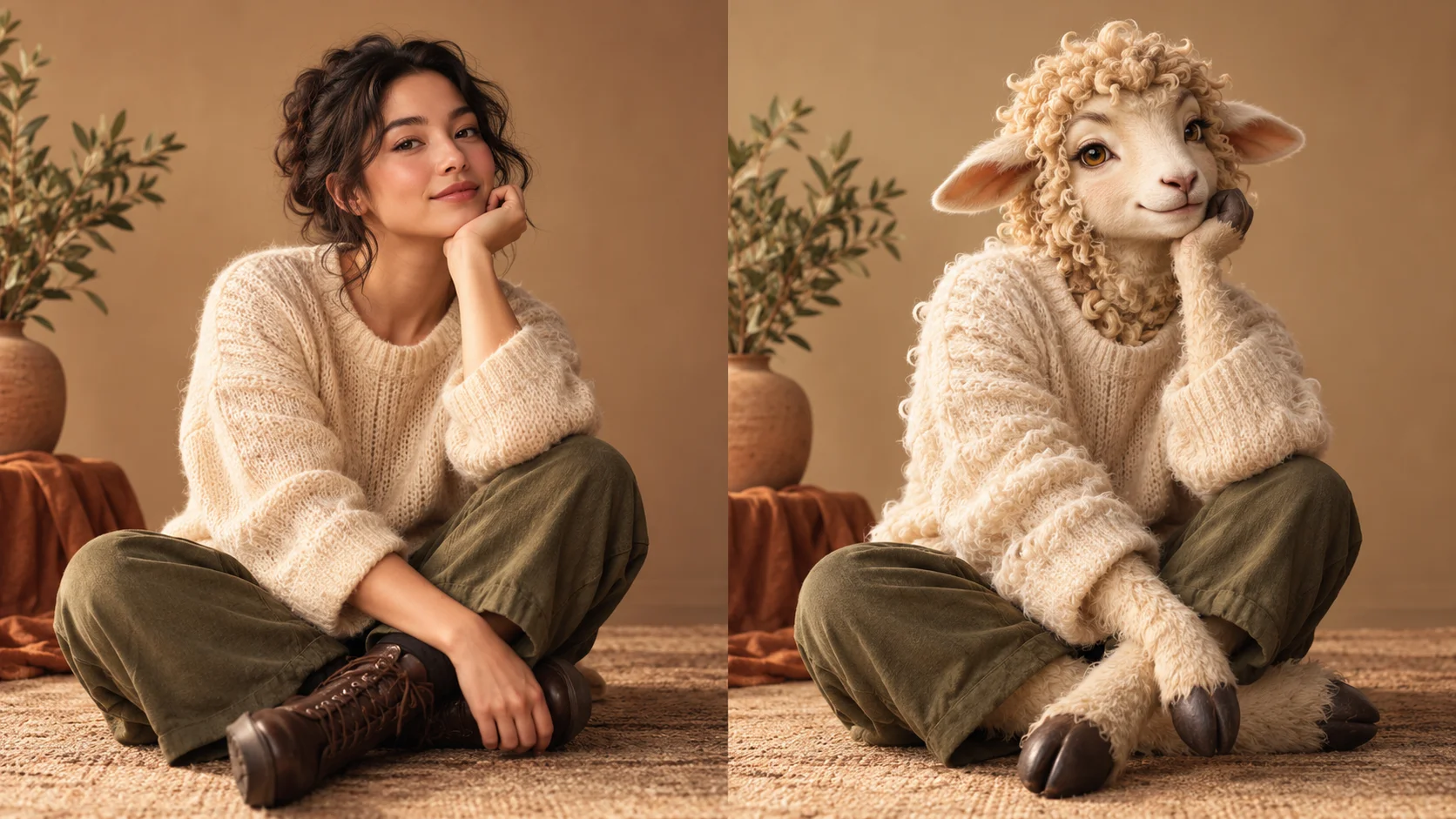
Use a photograph as the starting point for an animal-inspired portrait. Try it for a studio portrait series, with your own setting and a clear visual intention.
Choose Text to Image or Image to Image, prepare the matching inputs and describe one useful direction. Check the settings and quote, then submit and review the result in History.
Check your current account credits and the selected model’s access conditions. When the available balance covers the quoted job, you can generate without buying more credits.
Use a photograph with one clearly visible subject and a simple pose. A head-and-shoulders crop works well for facial expression.
Read the live credit quote for the selected model and settings before submitting your animal-inspired portrait. Preparing inputs or editing a description does not start a generation.
Follow the submitted job’s estimate and progress. The model, settings and queue affect waiting; History keeps the completed image available for review and download.
Use a photograph as the starting point for an animal-inspired portrait. Name a species, choose a visual style and describe the pose or expression worth retaining. On Try Nano Banana, approach it as a practical portrait or design study: clear preparation and a polished visual finish. Use the result to choose a direction, then check the details that matter at your intended viewing size.
Create a Photo to Animal portrait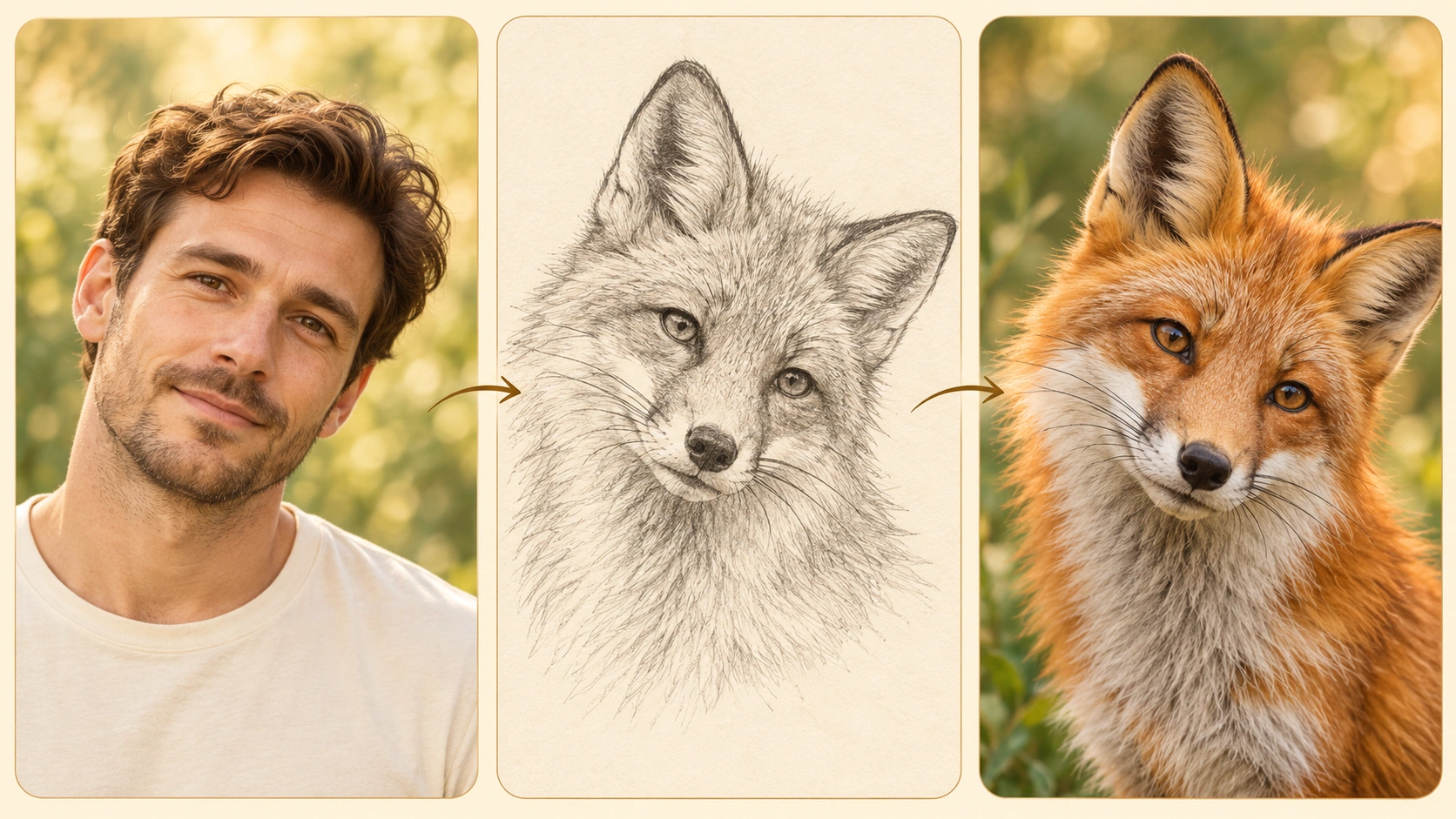
Upload one person photo in Image to Image, then name the animal and the expression to carry across. Pick a photo where the face and posture are easy to read, and crop tighter if the subject is small in frame.
Write the prompt and name the species you want. Describe wardrobe, material and scene in plain language. Use the available model controls to shape the result, then adjust your wording until the direction reads clearly and matches the mood you have in mind.
A live credit quote is displayed before you generate, so you see the cost first. Sign in to your account, run the generation job, then open History to compare earlier variations. Review pose, expression and visual cues against your source photo before deciding what to try next.
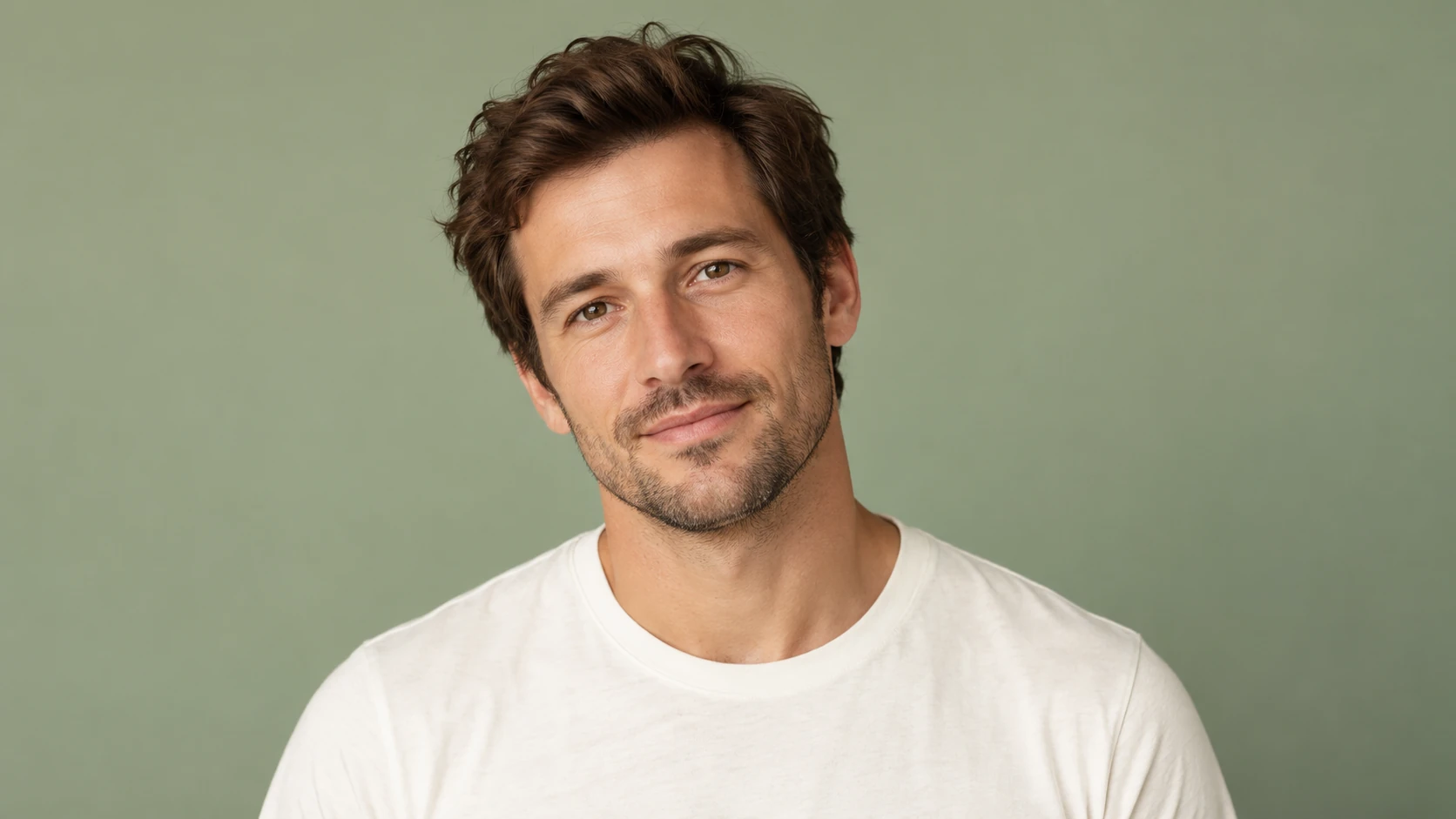
Choose a photo with one main subject. Good light, an unobstructed face and a visible pose help. Crop out distracting background clutter before uploading. One clear subject works best, so group shots and busy scenes usually give weaker guidance.
The species is yours to set and change between variations. Try a different animal on the same photo to see how the pose and expression carry across. Naming the species directly in the prompt keeps each attempt focused and makes comparisons in History easier to read.
Describe clothing, fabric weight and surface texture. Wool, leather, linen or knit each change how a portrait reads. Material language gives the model something concrete to work with, and small swaps between jobs produce noticeably different results without changing the source pose.
Set the backdrop, lighting and setting, then state which cues matter. Pose, expression, head tilt or a distinctive gesture can often be preserved. These are visual cues rather than biological predictions, and results vary between jobs, so review each output instead of assuming consistency.
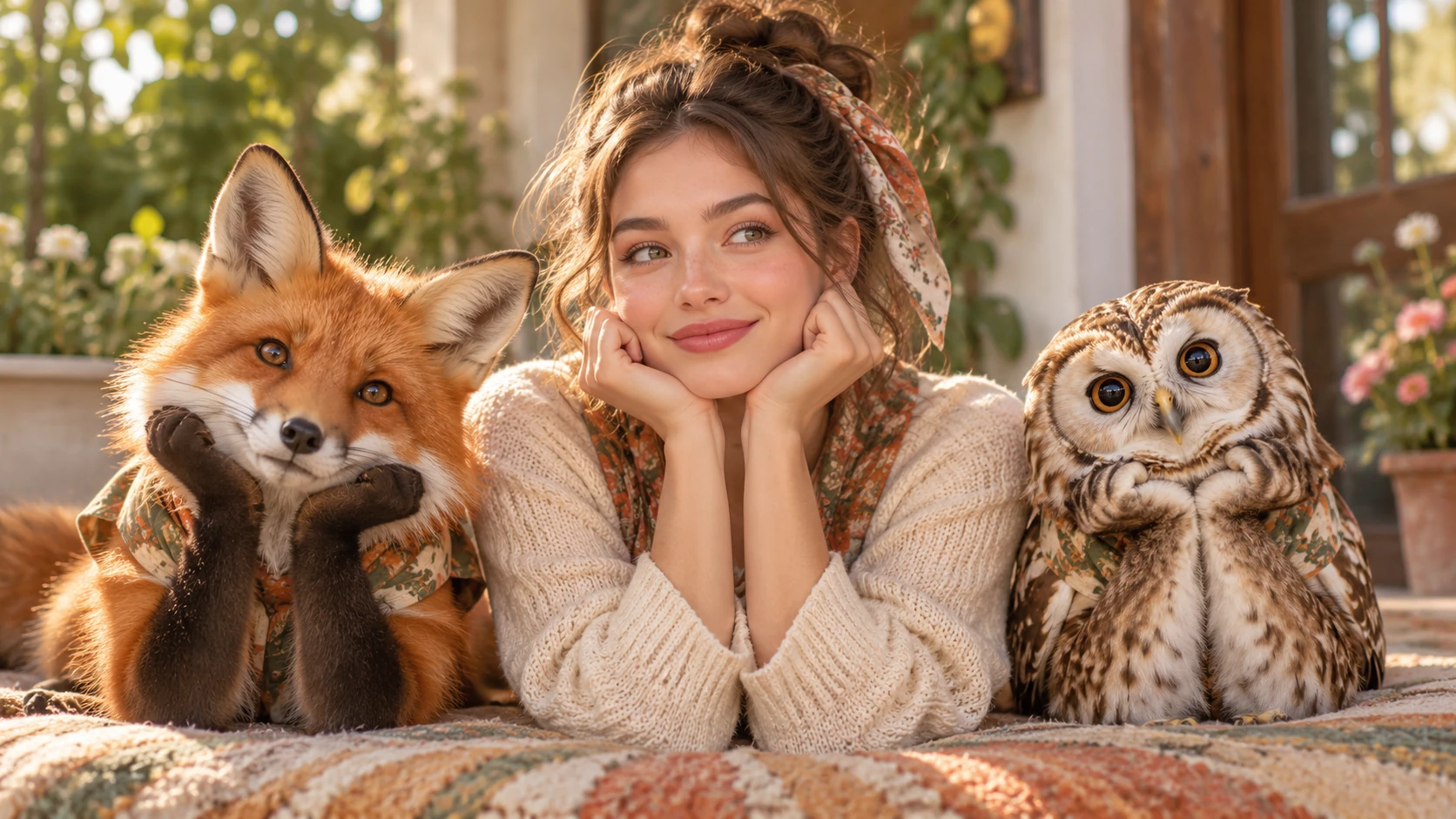
Take one headshot and build a set of variations with different species, then match wardrobe and backdrop so the series reads as a single editorial spread rather than unrelated images.
Start from a posed photo of a performer or model and explore material choices, from heavy knit to smooth leather, to find the direction that suits a costume or character brief.
Use a clear portrait with a simple background, pick a species with personal meaning, and describe a scene that suits a framed print. Keep the pose intact so the person stays recognizable.
One clear subject in good light with a visible face and posture. Simple backgrounds help. Group photos, heavy blur and heavy occlusion give the model less to work with, so the pose and expression are harder to preserve.
Yes. The species is editable, so you set it in the prompt and can change it between jobs. Keeping the same source photo while switching species is a quick way to compare how each direction treats the original pose.
They steer the visual direction. Fabric words like wool or leather, plus a described setting and light, give the model concrete choices. Change one element at a time to see which part of your prompt produced the difference.
Pose, expression and visual cues can often be preserved, but this is not guaranteed. The output is an interpretation rather than a biological prediction, so check each job in History and adjust the prompt if a cue matters to you.
Choose Text to Image for a new animal-inspired portrait made entirely from your description; it uses no uploaded reference. Choose Image to Image when one photo should guide the person, subject or composition. Select the mode first so the visible inputs match your intention.
You can prepare the animal-inspired portrait before submitting. To generate, check your signed-in account’s current credits and the selected model’s access conditions. If the available balance covers the displayed quote, you can proceed without buying more; no fixed free quota is promised.
Your animal-inspired portrait has a live credit quote based on the model and settings you choose. Check it before submitting. Editing the description or reviewing an idea does not start a job; submitting another generation creates a separately quoted attempt.
Use the estimate and progress shown for the submitted animal-inspired portrait job. Model choice, settings and queue conditions affect waiting. Check History for the completed image, and keep the existing task in progress instead of resubmitting the same request while you wait.
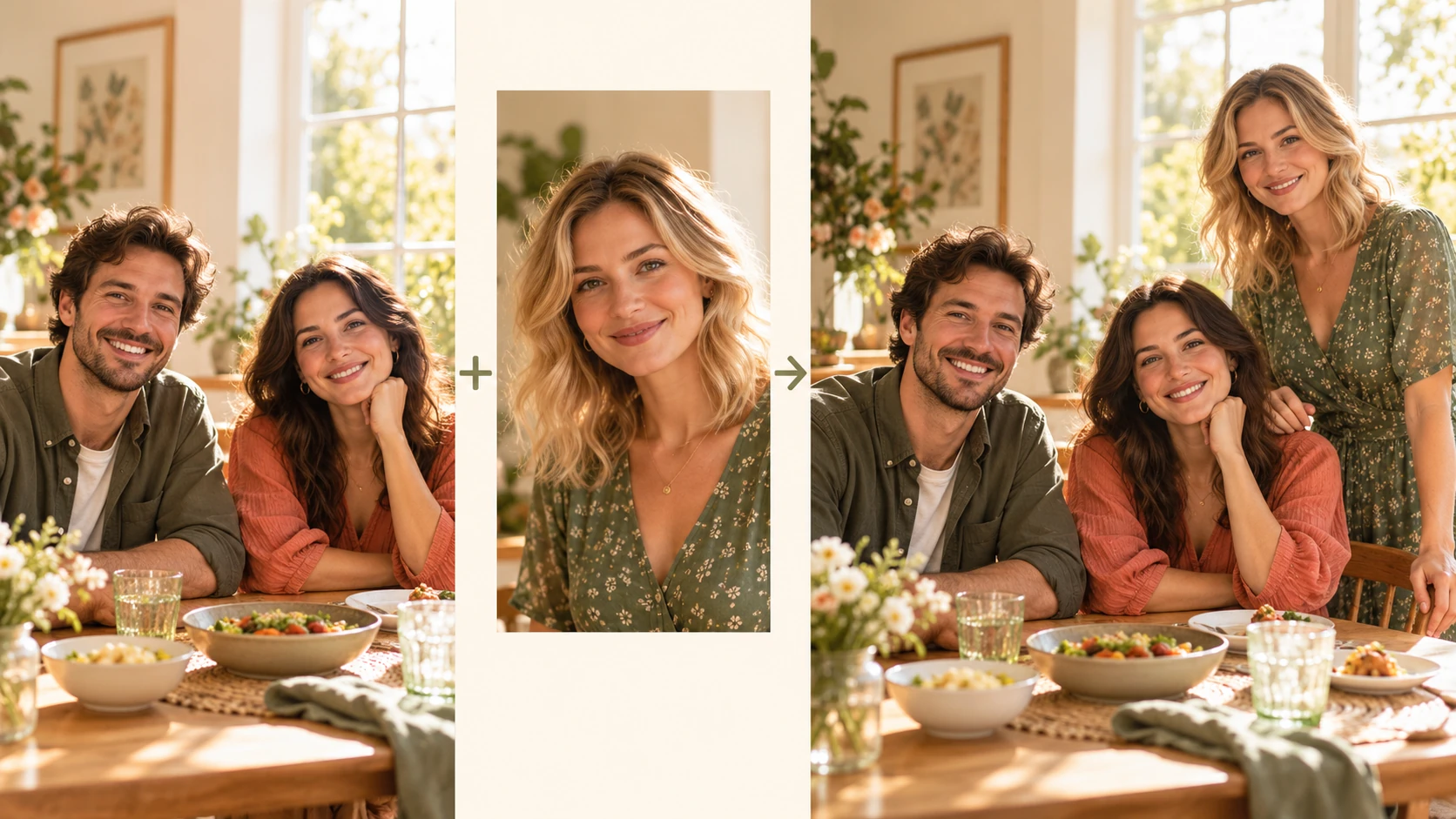
Explore Add People To Photo for a different visual direction. This guide explains its input, practical steps and the details to review.
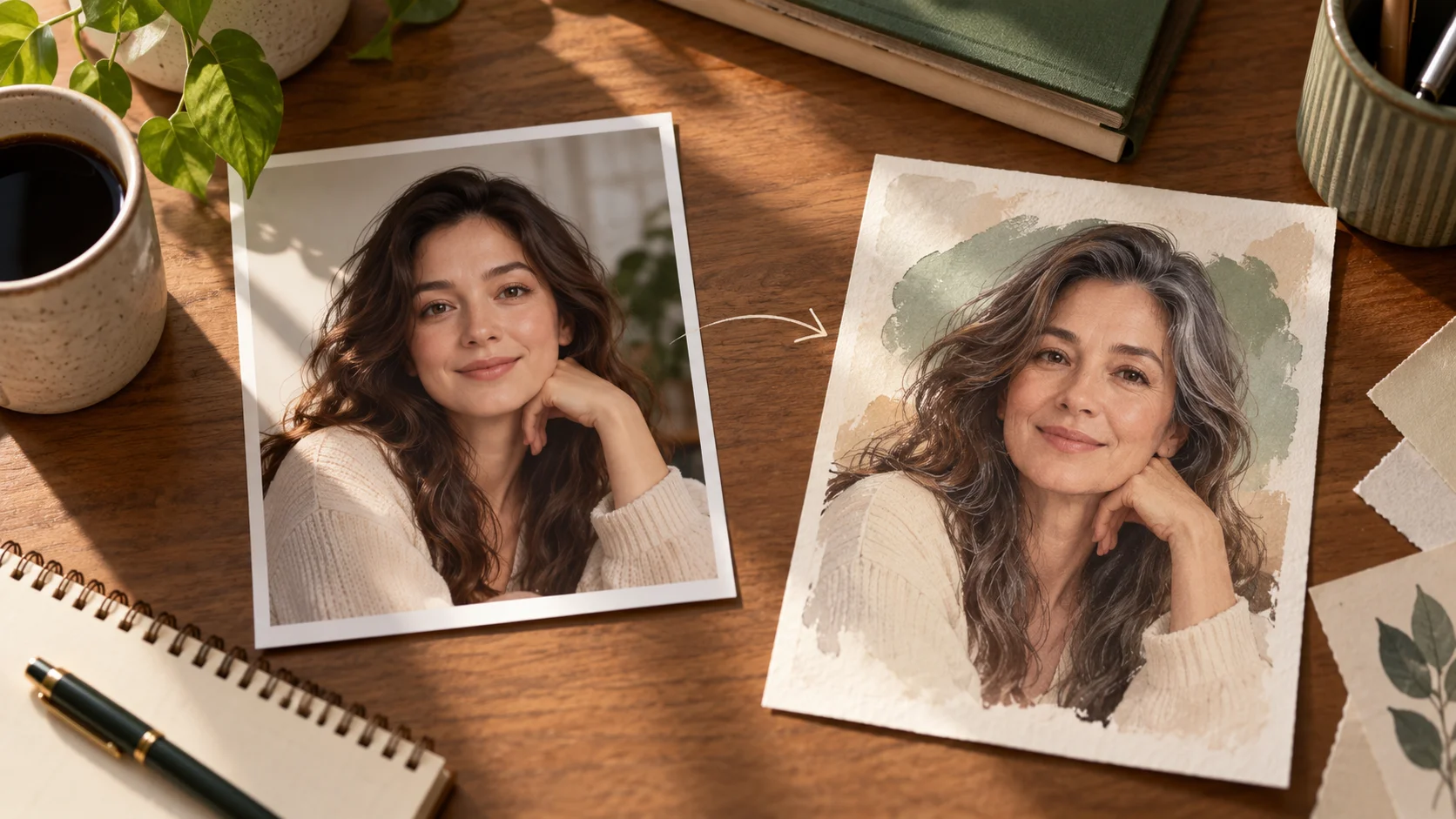
Explore AI Age Checker for a different visual direction. This guide explains its input, practical steps and the details to review.
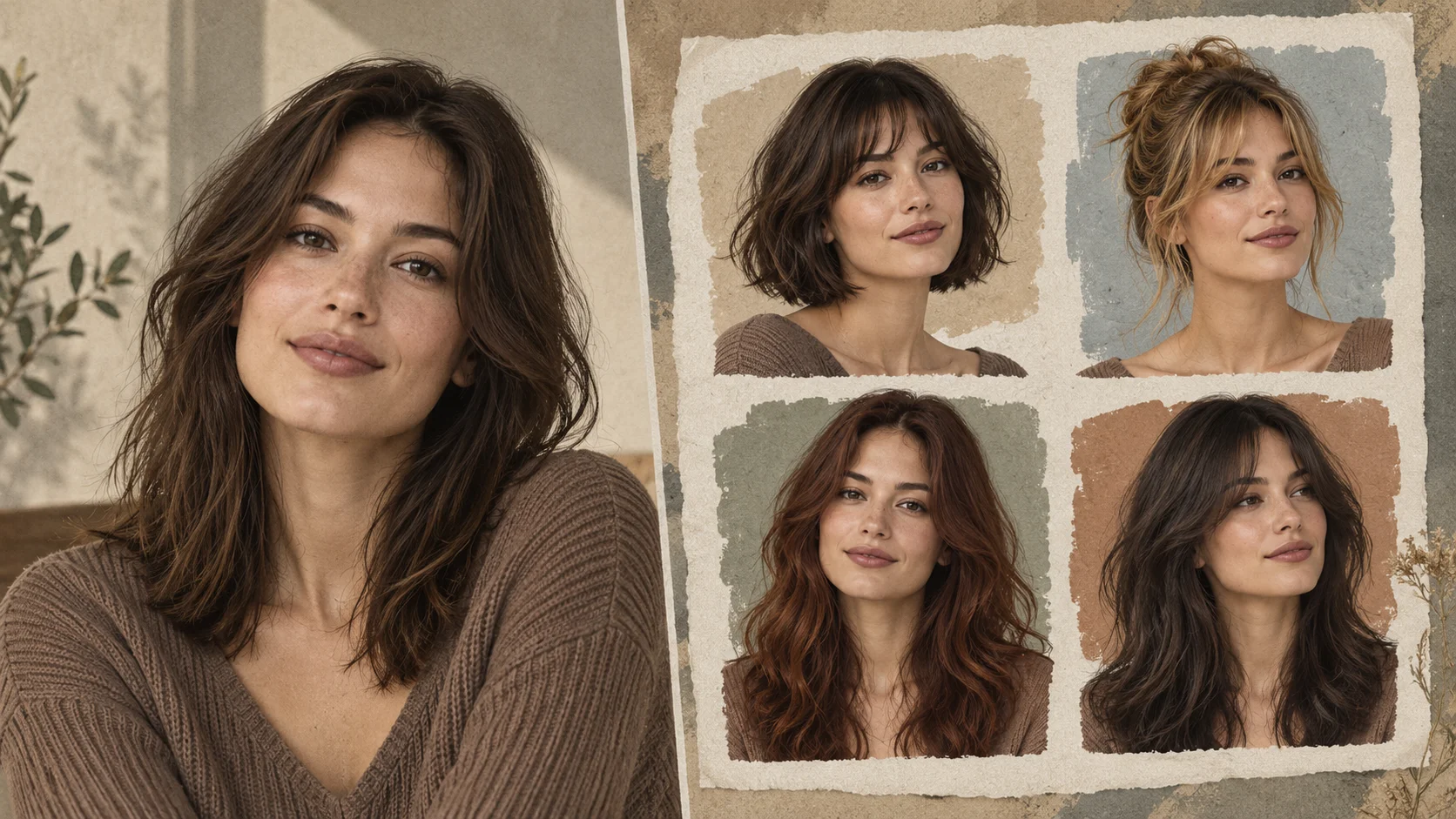
Explore AI Hairstyle Online Free for a different visual direction. This guide explains its input, practical steps and the details to review.
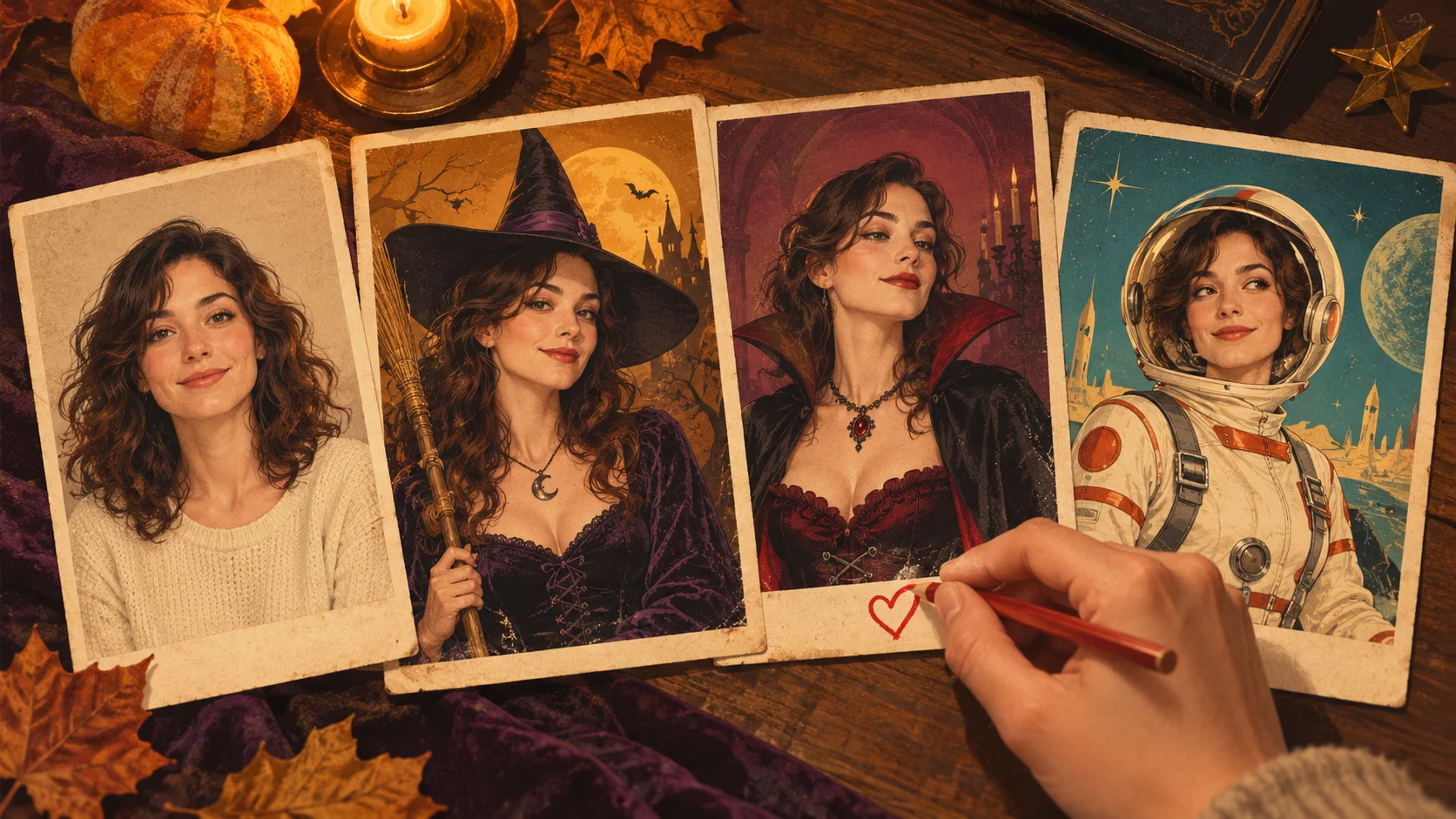
Explore AI Halloween Costume for a different visual direction. This guide explains its input, practical steps and the details to review.
Use the result to choose a direction, then check the details that matter at your intended viewing size. Prepare the animal-inspired portrait, read the current quote and submit when the direction is clear.
Create a Photo to Animal portraittry-nanobanana.com · Updated