What is Add People To Photo?
Add one adult person to an existing scene using exactly two images: the base photo and a separate portrait of the person to add. Try it for family archive planning, with your own setting and a clear visual intention.

a practical portrait or design study
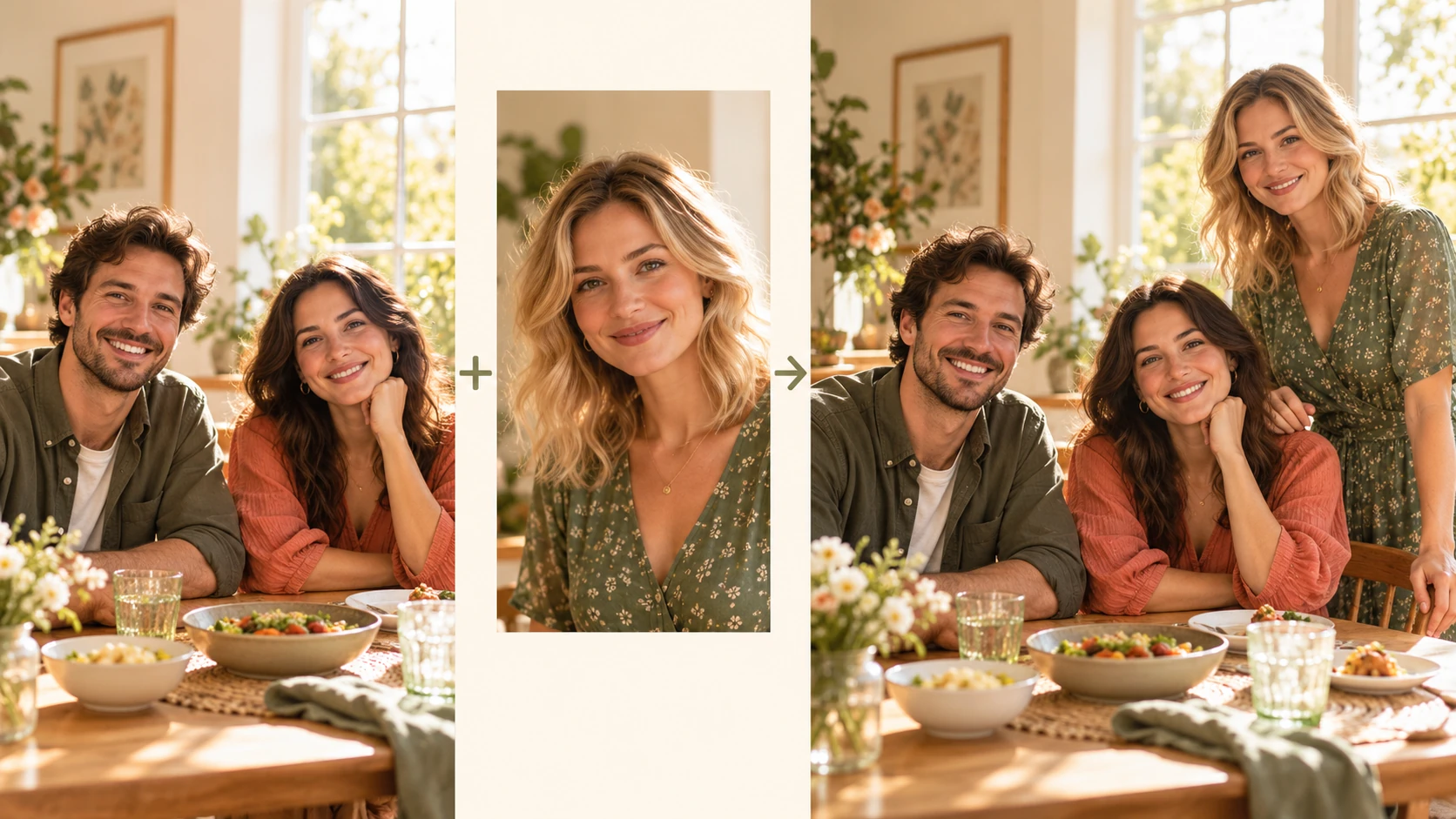
Add one adult person to an existing scene using exactly two images: the base photo and a separate portrait of the person to add. Try it for family archive planning, with your own setting and a clear visual intention.
Choose Text to Image or Image to Image, prepare the matching inputs and describe one useful direction. Check the settings and quote, then submit and review the result in History.
Check your current account credits and the selected model’s access conditions. When the available balance covers the quoted job, you can generate without buying more credits.
In Image to Image, add exactly two pictures in their named roles: the base scene first and one adult person portrait second. Choose similar lighting when possible.
Read the live credit quote for the selected model and settings before submitting your two-photo person edit. Preparing inputs or editing a description does not start a generation.
Follow the submitted job’s estimate and progress. The model, settings and queue affect waiting; History keeps the completed image available for review and download.
Add one adult person to an existing scene using exactly two images: the base photo and a separate portrait of the person to add. Describe where the person should stand, their relative size and how the light should match. On Try Nano Banana, approach it as a practical portrait or design study: clear preparation and a polished visual finish. Use the result to choose a direction, then check the details that matter at your intended viewing size.
Add people to photo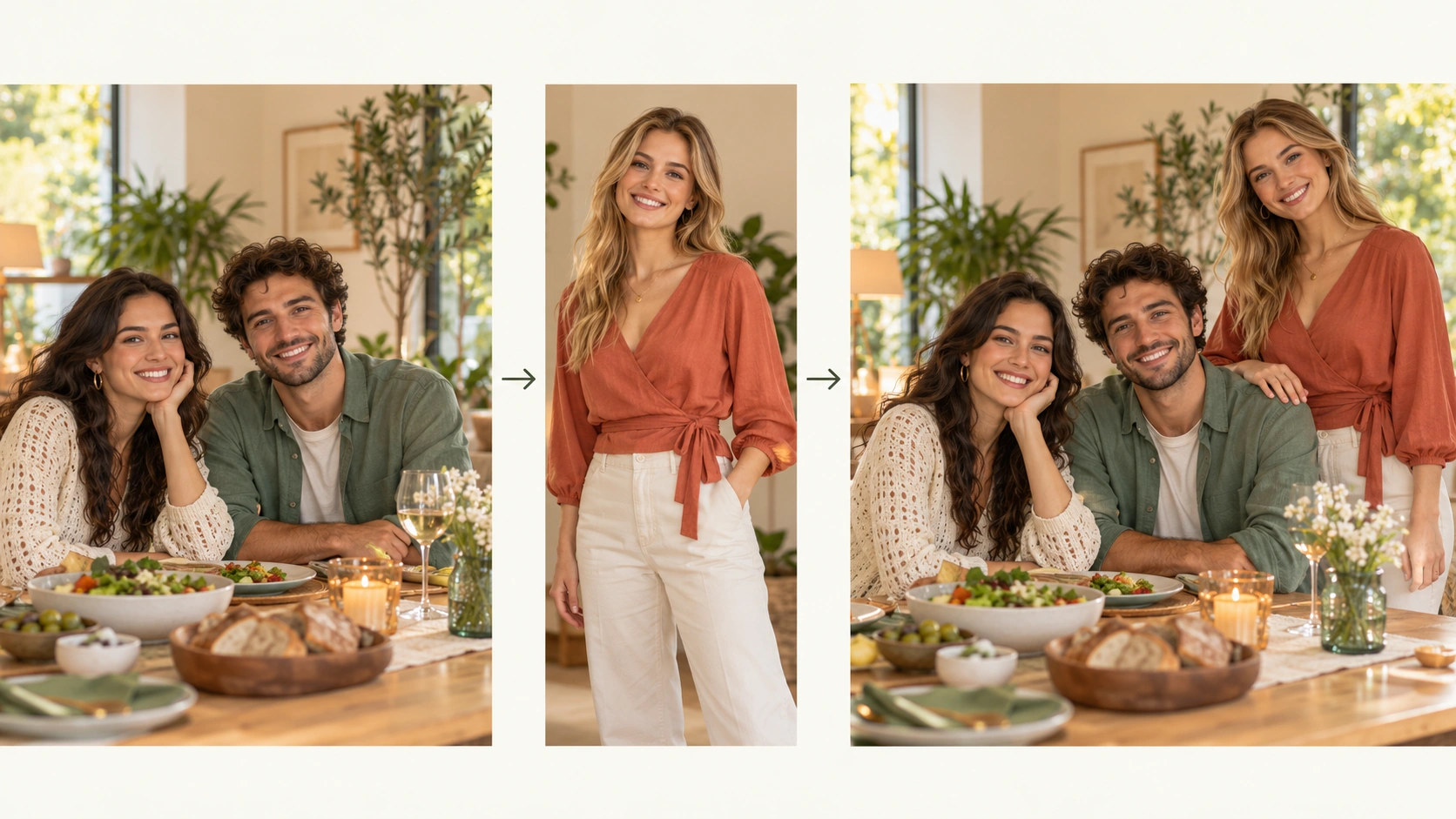
Prepare exactly two photographs with separate base and person roles before submitting a generation. Write the placement as a sentence with a landmark, such as standing between the two seated guests on the left.
Describe who to add, where they should stand or sit, how large they should appear, and which light source each figure should share. State what must remain in the scene. Keep the prompt editable and adjust model controls as needed. Vague phrases like make it look natural rarely help; concrete placement notes do.
The generator displays a live credit quote before the job runs, so read it first. After generation, open History and compare each result against your written brief: placement, scale, lighting, retained scene, and facial resemblance. Keep the versions that meet the brief and adjust the prompt for the next attempt rather than accepting the first job.
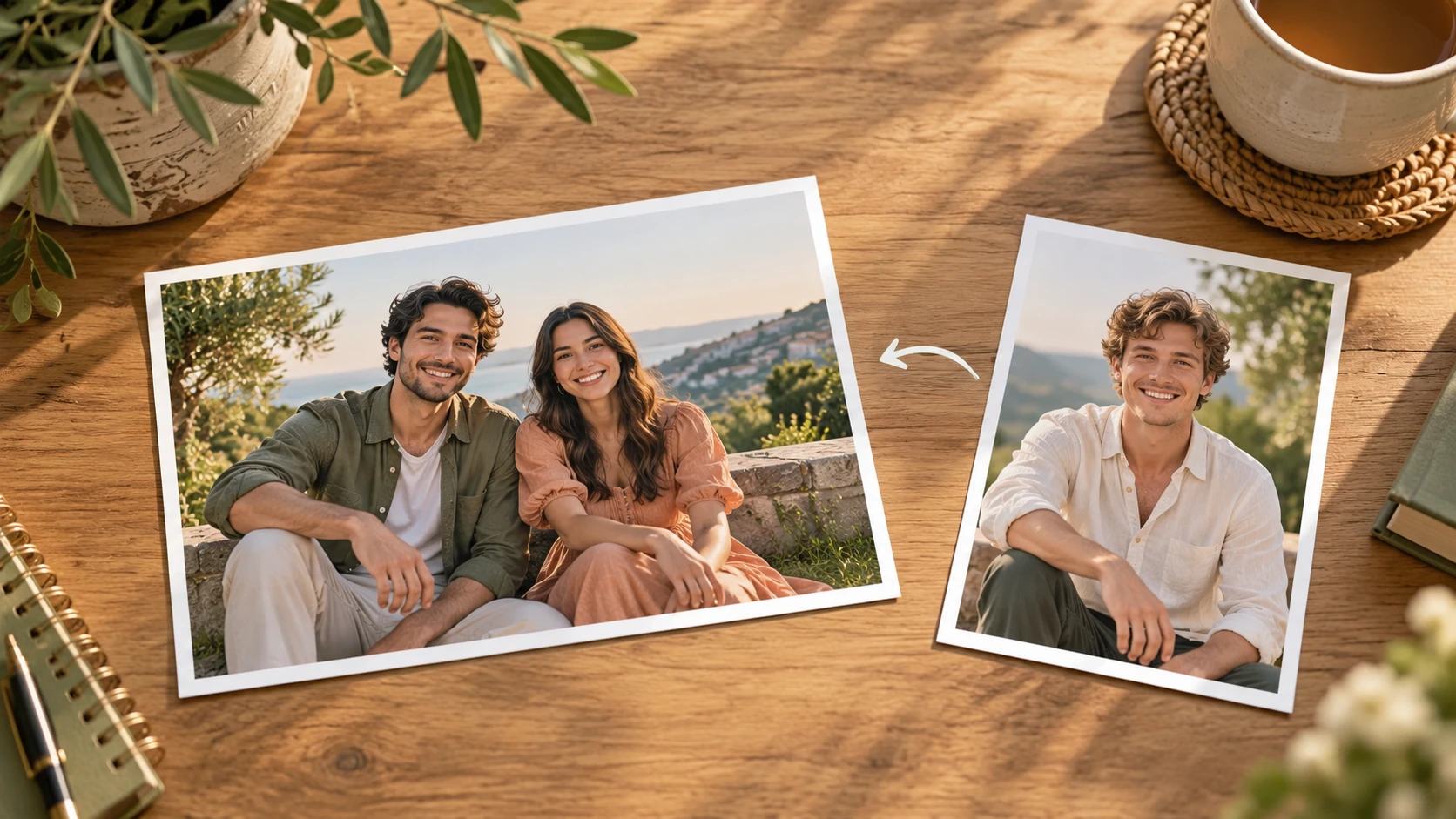
In Image to Image, add exactly two pictures in their named roles: the base scene first and one adult person portrait second. Choose similar lighting when possible. Give a precise placement landmark rather than saying add someone somewhere.
The added person should sit in the position named in your prompt, with feet or seat contact that makes sense in the scene. Check the edges of the figure against furniture, doorways, and other people. A small gap or overlap often reveals whether the placement note was followed, so compare two jobs before deciding which direction to refine.
Relative height and distance matter more than detail. Compare head height and shoulder width against nearby people, then check the light direction on the face. The goal is a coherent-looking scene, not a pixel-perfect composite. Shadows and color temperature can look close without matching exactly, and that difference is worth noting.
Use the base photograph to establish the existing people, room and camera angle. Add one separate portrait to identify the adult you want to introduce. Write the placement and preserved details in the description. Review the complete scene after generation: the added person and the original group both need coherent faces, scale, clothing and light.
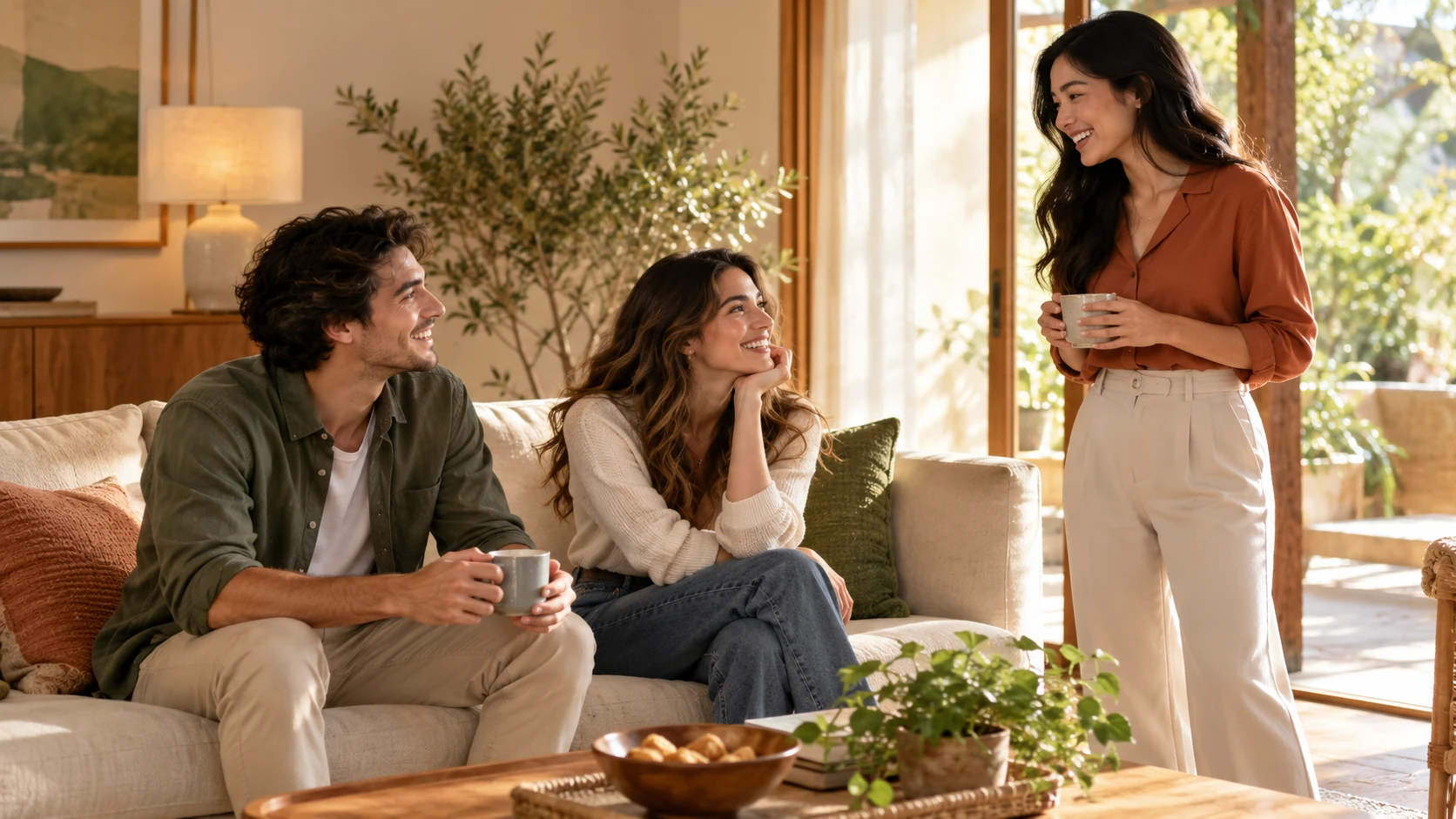
You have a group photo from a gathering and a separate portrait of someone who missed it. Write the missing person into a specific spot near a relative, match the room light, and compare versions before sharing anything with family members.
A small team photo needs one new colleague added for an internal layout draft. Use a neutral reference portrait, place the figure at the edge of the group, and keep uniforms and background unchanged so reviewers focus on composition.
For a recap page, add a speaker into a stage photo using a portrait reference. Set scale against the podium, describe the stage lighting, and retain the banner and seating so the image still reads as the same event.
Name each person, the reference image used for them, the position relative to an existing object or person, and the intended size. Add clothing and posture notes. Concrete landmarks beat vague requests for a natural look.
Add exactly two pictures in Image to Image: one base photograph and one portrait of the adult to add. Keep their roles distinct and describe a position inside the base scene. This workflow is for one added-person reference, rather than an unlimited collection of portraits.
Describe scale through comparison, such as slightly shorter than the person beside them. Describe lighting by naming the visible source and the side it falls on. Model controls can be adjusted, but the prompt carries most of the placement and light direction.
Describe the placement, height relative to a nearby person and light direction. Use a base photograph with an open space and a portrait shot under similar light. Check the original people and background as well as the added adult when you review the result.
Choose Text to Image for a new group scene made entirely from your description; it uses no uploaded reference. Choose Image to Image when you want to combine your base scene and one person portrait. Select the mode first so the visible inputs match your intention.
You can prepare the two-photo person edit before submitting. To generate, check your signed-in account’s current credits and the selected model’s access conditions. If the available balance covers the displayed quote, you can proceed without buying more; no fixed free quota is promised.
Your two-photo person edit has a live credit quote based on the model and settings you choose. Check it before submitting. Editing the description or reviewing an idea does not start a job; submitting another generation creates a separately quoted attempt.
Use the estimate and progress shown for the submitted two-photo person edit job. Model choice, settings and queue conditions affect waiting. Check History for the completed image, and keep the existing task in progress instead of resubmitting the same request while you wait.
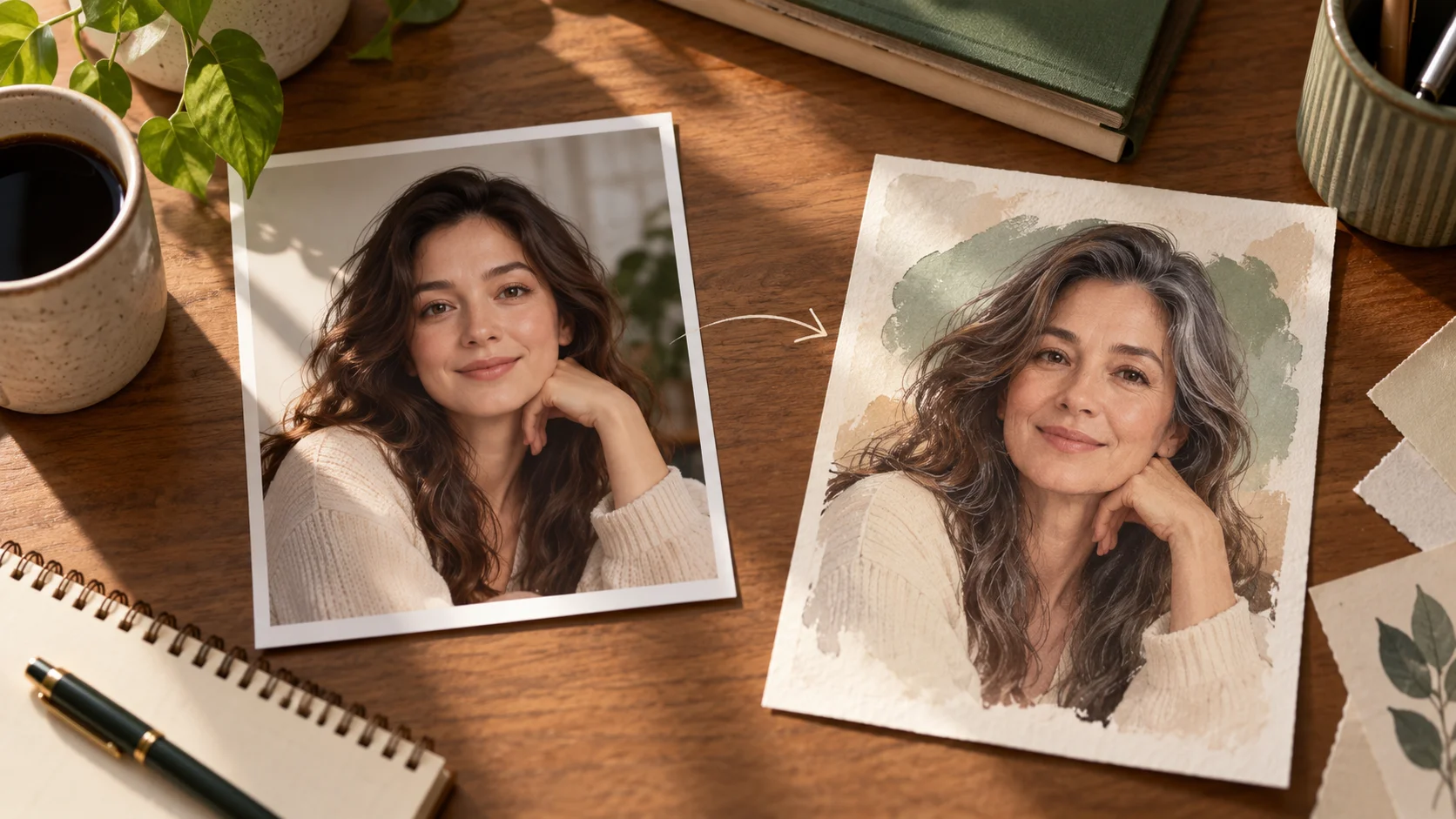
Explore AI Age Checker for a different visual direction. This guide explains its input, practical steps and the details to review.
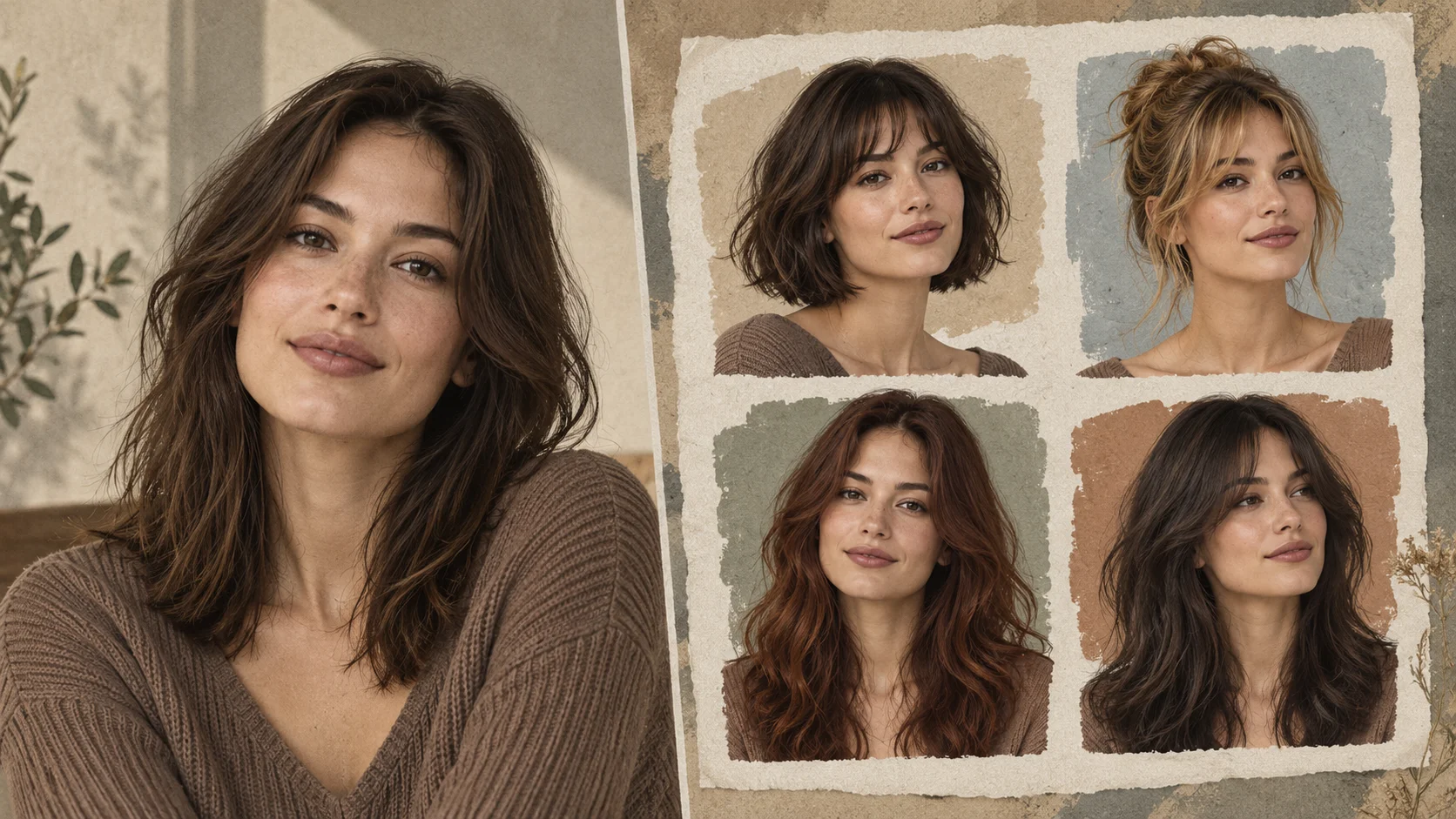
Explore AI Hairstyle Online Free for a different visual direction. This guide explains its input, practical steps and the details to review.
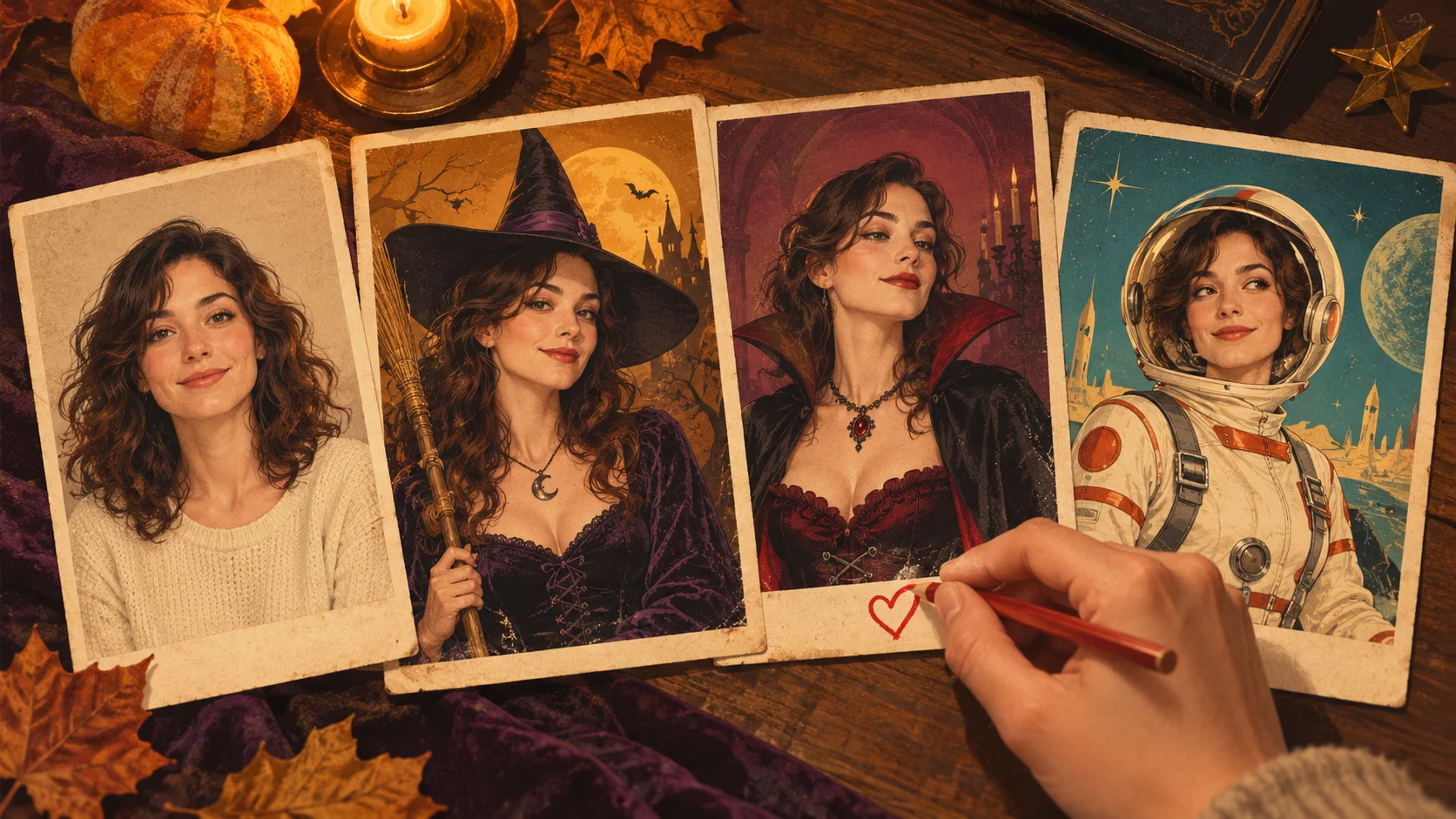
Explore AI Halloween Costume for a different visual direction. This guide explains its input, practical steps and the details to review.
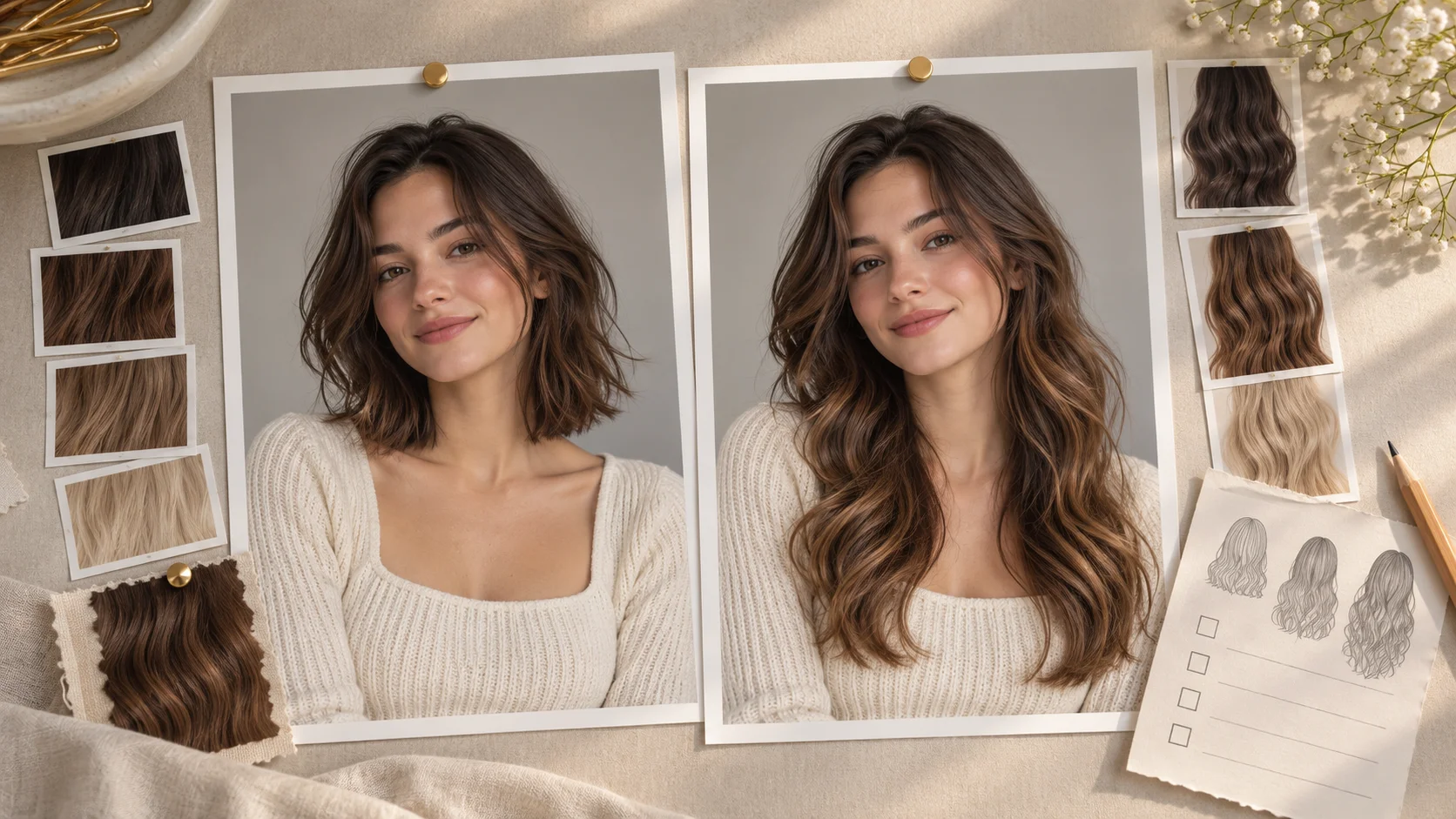
Explore AI Long Hair Filter for a different visual direction. This guide explains its input, practical steps and the details to review.
Use the result to choose a direction, then check the details that matter at your intended viewing size. Prepare the two-photo person edit, read the current quote and submit when the direction is clear.
Add people to phototry-nanobanana.com · Updated